Managing File Chaos in Peer Review
Filed in Teaching with Technology Portfolio
In any writing course, peer review is an essential activity that provides the most valuable, if least visible, rewards to students. Peer review does have the potential to incur disorganization and inefficiency, though, given the amount of file-switching and -submitting students need to do. Teaching peer review, in other words, involves teaching file management and maintenance skills in addition to teaching editing and commentary skills.
In my introductory rhetoric and composition course, I build in graded peer review as one of the major assignments, accounting for 20% of a student's final grade. I use Canvas's discussion boards to corral the sharing of rough drafts and reviewed copies. Because I sort my ENGL 15 students into semester-long small writing groups, each peer review discussion board page is much more manageable than a class-wide one would be. Even still, the actual procedure can still get a little messy, because the multi-step nature of peer review sometimes clashes with software. My students must use Word to submit their drafts and to comment on their peers' drafts; then they have to export their reviewed draft as a PDF and submit that to an assignment page (and this is what I look at to grade their effort). My discussion board tries to make this process as clear as possible with thorough (if perhaps too long) instructions.
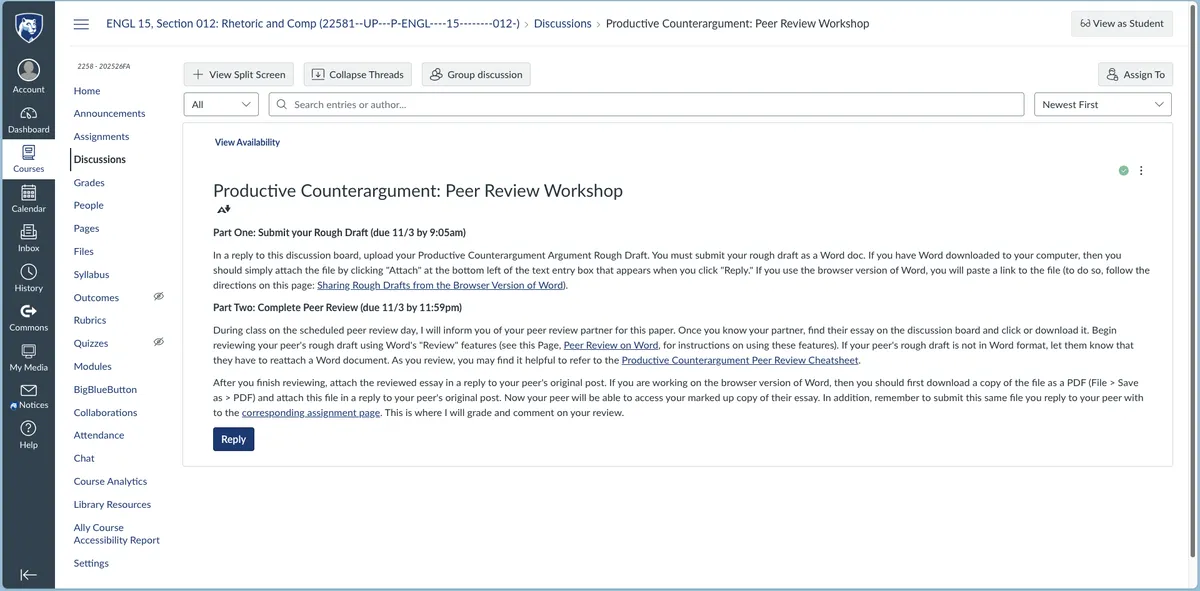
No instructions ever written have achieved perfect prophylaxis. Sometimes students have issues making sure their peer can see their Word draft (sometimes they have shared a link but have not configured the file to be edited). Sometimes students download a PDF of their review, but not with their comments. These issues are, for the most part, easily triaged and fixed in class, but it can take away valuable time from the actual process of reviewing.
Thus, in teaching a section of ENGL 202C: Technical Writing for the first time, I decided to try something different for managing peer review—something that, I think, turned out to be more intuitive. I set up a shared OneDrive folder and stored the link to it on the Home page of Canvas.
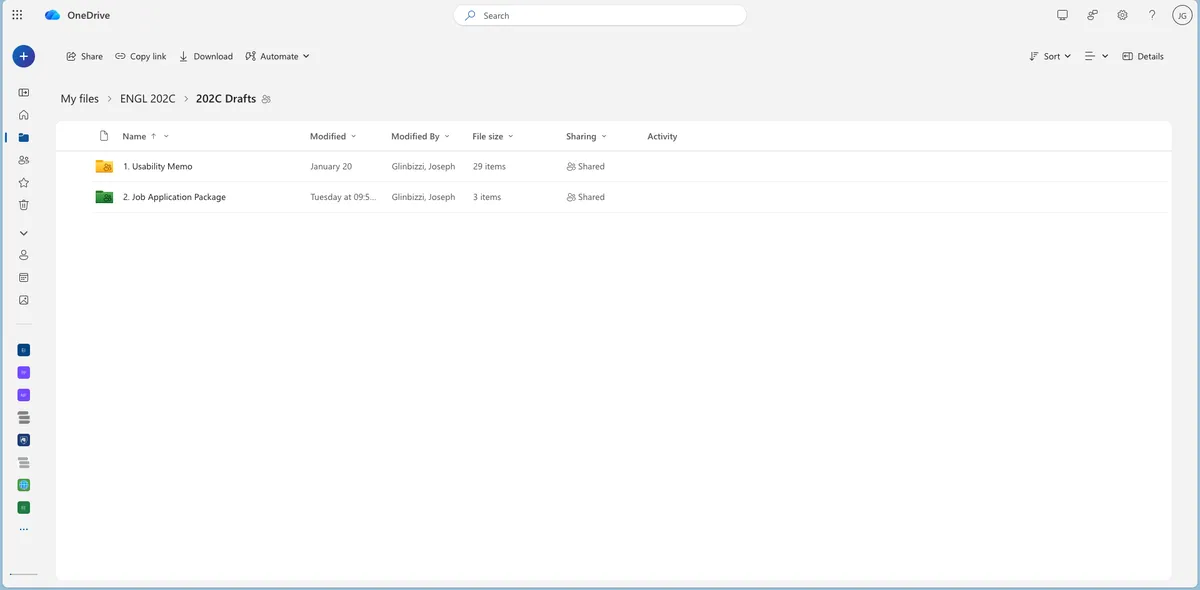
I instructed students to upload their drafts to this folder (in the corresponding assignment subfolder), with a particular file naming convention according to this model: "GlinbizziJoseph Usability Memo DRAFT 30 Jan 2026". This enforced an alphabetical class order on the files, making it easy for peer reviewers to find their peer's draft. After completing their review, students were instructed to append details to the file name to indicate this status: "GlinbizziJoseph Usability Memo DRAFT 30 Jan 2026 reviewed JGG".
Students still need to export a PDF copy to submit to me for my review, but the OneDrive method communicates, I think, the importance of good file status management and significantly reduces the traction of actually swapping files. By setting up sharing at the folder level, every file uploaded is automatically shared, so students don't run into the friction of needing to configure that on their own (which Microsoft Office does not make intuitive).
This is the final page in my Teaching with Technology Portfolio.